

Building a website for the first time can feel overwhelming, especially when you are unsure where to begin or which tools to use. Many beginners assume that creating a professional website requires technical expertise or a large budget, which often discourages them from starting. Learning how to build a WordPress website simplifies the entire process by offering a flexible and beginner-friendly platform that focuses on usability rather than complexity.
This guide is designed to provide clear and structured instructions for beginners who want a reliable path from start to finish. It explains every essential step, including planning your website, setting up hosting, choosing premium WordPress themes, installing plugins, creating content, and preparing for launch. By following this guide carefully, you will gain the confidence to manage your website independently and build a strong foundation for future growth.
Why Choose WordPress for Your Website?
WordPress powers more than 40% of websites worldwide, and there are solid reasons behind its popularity. It’s reliable, beginner-friendly, and adaptable for almost any type of website.
Key Reasons WordPress Is Ideal for Beginners
- Easy to use: WordPress has an intuitive dashboard that makes content creation and site management simple, even for first-time users.
- No coding required: You can design pages, add features, and customize layouts without writing a single line of code.
- Highly customizable: Thousands of free themes and plugins allow you to change how your site looks and functions.
- SEO-friendly structure: WordPress is built in a way that helps search engines understand your content more easily.
-
Scalable platform: Start small and expand your site as your goals grow, without switching platforms.
These benefits make WordPress the perfect solution for anyone learning how to build a WordPress site from scratch.
Benefits of Creating a Website Using WordPress
Creating a website with WordPress offers advantages that go beyond ease of use.
Major Benefits Explained
- Cost-effective: You can start free or with minimal investment depending on your needs.
- Ownership and control: You manage your content, design, and features independently.
- Large support community: Tutorials, forums, and guides are available for almost every issue.
- Regular updates and security improvements: WordPress continuously improves performance and safety.
-
Future-ready platform: Easily integrate tools like analytics, email marketing, and automation.
These benefits make learning how to build a WordPress site a valuable skill for long-term success.
How to Create a WordPress Website for Beginners Step-by-Step Guide
Step 1: Define the Purpose, Goals, and Structure of Your Website
If you are sitting in front of your desktop and planning to create a WordPress website, the first thing you should do is not open WordPress or any hosting website yet. This step is about planning, and it helps you avoid confusion later. A clear plan ensures your website feels structured, useful, and easy to build.
Start by opening a simple tool on your computer such as Notepad, Google Docs, or Microsoft Word. Create a new document and write down the main purpose of your website. Ask yourself why you want to create it and what you expect it to achieve. This clarity is essential when learning how to create a WordPress website for beginners.
Next, identify your target audience. In the same document, write a few points about who will visit your website and what they might be looking for. This clarity helps you understand how to build a WordPress site that truly meets user expectations and make better decisions when choosing tools, layouts, and features from modern WordPress website builders.
Now, list the basic structure of your website. Most beginner WordPress websites start with a few essential pages. Write these page names clearly in your document:
- Home – to introduce your website and explain its purpose
- About – to share details about you, your brand, or your business
-
Contact – to allow visitors to reach you easily
After that, note down what kind of content your website may include in the future, such as
- Blog posts
- Service descriptions
- Informational pages
Even if your goal is to learn how to create website in WordPress for free, this planning step is important. By listing your goals, audience, and page structure before opening a browser, you create a strong foundation that makes every upcoming step clearer and easier.
Step 2: Choose a Domain Name That Clearly Represents Your Website

Now that you have planned your website, it is time to take the first real online action. Sit in front of your desktop and open your web browser (Chrome, Edge, or Firefox). In the address bar, type the name of a domain provider and press Enter. This is where you will choose your website’s name.
A domain name is the address people type to visit your website, such as example.com. Choosing the right one is important because it affects how professional and trustworthy your site looks. When learning how to build a WordPress site, beginners should always keep domain names simple and easy to remember, and also understand that it’s possible to change domain name in WordPress later if your brand or website goals evolve.
Before searching, think about a name that relates to your website’s purpose. It should be short, clear, and meaningful. Avoid adding numbers, special characters, or long words, as these make domains harder to type and remember.
When checking domain availability, follow these basic guidelines:
- Choose a name that is easy to spell and pronounce
- Make sure it reflects your website topic or brand
- Avoid copying well-known brand names
Now, visit a trusted domain registrar to search and register your domain:
- Namecheap – beginner-friendly and affordable
- GoDaddy – widely used with many extensions
-
Google Domains – simple and reliable
Type your preferred domain name into the search box on any of these websites and check if it is available. If your first choice is unavailable, try small variations or different extensions like .com, .net, or .in.
If you are not ready to spend money and want to learn how to create website in WordPress for free, you can skip domain purchase for now and use a free subdomain later. However, owning a domain gives your website a more professional identity from the start.
Step 3: Select Reliable Hosting and Install WordPress

Now that you have a domain name (or have decided to use a free option), the next step is to choose web hosting. Hosting is where all your website files are stored so people can access your site online. Sit in front of your desktop and open your browser again, because this step involves visiting a hosting provider’s website.
In the address bar, type the name of a hosting provider and press Enter → choose a hosting service that is simple and reliable → make sure it offers easy or one-click WordPress installation. This approach makes the process of how to create a WordPress website for beginners much less technical and easier to follow.
Visit one of the following beginner-friendly hosting providers:
- Bluehost – officially recommended by WordPress
- Hostinger – affordable and easy to use
-
SiteGround – strong performance and customer support
Once you are on the hosting website, select a basic hosting plan suitable for beginners that supports website hosting WordPress, connect your domain name or choose a temporary domain, and create your hosting account using your email address and a password to complete the setup.
After completing the purchase, log in to your hosting dashboard. Most hosting providers display a clear option like “Install WordPress” or “Create Website.” Click on it and follow the on-screen instructions.
During WordPress installation, you will be asked to:
- Select your domain name
- Set an admin username
- Create a strong password
Write down these login details in a safe place. When the installation finishes, your WordPress website will be live, and you will receive a login URL to access the dashboard.
If you are exploring how to create website in WordPress for free, you can skip paid hosting for now and use WordPress.com instead. However, paid hosting gives you more control and flexibility as your website grows.
Step 4: Explore the WordPress Dashboard and Configure Basic Settings
Once WordPress is installed, you will receive a login URL from your hosting provider. Open your browser, paste the login link into the address bar, and press Enter. Enter the admin username and password you created during installation, then click Log In. This will take you to the WordPress dashboard.
The dashboard is the main control panel of your website. At first glance, it may look overwhelming, but you do not need to use everything immediately. Take a few minutes to look around so you understand where things are located. This step is important because knowing the dashboard helps you understand how to build a WordPress site without confusion later.
On the left-hand side, you will see a menu with options such as Posts, Pages, Appearance, Plugins, and Settings. Each section controls a different part of your website. For now, focus only on basic settings.
Follow this simple flow:

- Step 1: Go to Dashboard → Settings → General and update your website title and tagline.
- Step 2: Under Settings → General, set the correct time zone.
- Step 3: Go to Settings → Permalinks, select Post name, and click Save Changes.
- Step 4: Navigate to Settings → Reading and choose whether your homepage shows your latest posts or a static page.
At this stage, it is helpful to understand that pages are used for static content like Home and About, posts are used for blogs and regular updates, the Appearance section controls design elements, and plugins are used to add features.
If you are learning how to create website in WordPress for free or using paid hosting, these settings apply the same way. Spending time here builds confidence and ensures your website is correctly set up before moving forward.
Step 5: Choose and Customize a WordPress Theme That Fits Your Website

Once you are familiar with the WordPress dashboard, the next step is selecting a theme. A theme controls the visual appearance of your website, including layout, colors, fonts, and overall style. If you are planning to launch an online store, choosing the right WordPress themes for dropshipping is essential for showcasing products and optimizing conversions. Log into your WordPress dashboard, and go to Appearance → Themes. Here, you can browse various themes and choose one that fits your website’s purpose.

For beginners, it’s best to select a theme that is easy to customize and works well with your content. VWthemes offers several well-designed themes on that are ideal for different types of websites. Some examples include:
- Dropshipping Shop by VW Themes - perfect for starting an online store or eCommerce website
- VW Lifestyle Blog by VWThemes - ideal for lifestyle blogs, personal stories, or content-rich websites
- Ecommerce Landing Page by VWThemes - designed to showcase products and create high-converting landing pages.
- Sales page WordPress Theme by VWThemes - designed to help businesses build high-converting sales and landing pages.
- Venture capital WordPress Theme by VWthemes - designed to help investment firms and startups showcase their services with elegant layouts.
To use a theme, click Install and then Activate. Next, go to Appearance → Customize. The WordPress Customizer allows you to adjust your website’s design visually without touching any code.

Focus on these key customization areas:
- Upload your logo and site icon to strengthen branding
- Adjust colors and typography to match your style
- Customize headers and footers for navigation and contact information
- Set your homepage layout to display the content you want visitors to see first
VWthemes are designed to be fast, and compatible with popular plugins, making them ideal for beginners learning how to create website in WordPress. Experiment with different settings in the customizer to see how your site will look in real time.
Once your theme is installed and customized, your website starts taking shape visually, making the next steps of content creation and functionality setup easier.
Step 6: Install Essential Plugins and Create Core Website Pages

Once your theme is set up, the next step is to add essential plugins and create the core pages of your website. Sit in front of your desktop, log into your WordPress dashboard, and go to Plugins → Add New. Plugins add functionality to your website, such as contact forms, SEO optimization, security, backups, or eCommerce features.
For beginners, start with essential plugins that enhance usability without overloading your site. Some recommended plugins that work well with VWthemes include:

- Yoast SEO – for search engine optimization
- WPForms – to create contact forms easily
- UpdraftPlus – for website backups
- Wordfence Security – for protection against malware
-
WooCommerce – if you are building an online store
After installing these plugins, focus on creating your core pages, which provide structure and key information for visitors. This includes the Home Page to introduce your website, the About Page to share information about your brand, the Contact Page to allow visitors to reach you, and a Privacy Policy to build trust and explain data usage.
To create a page, go to Pages → Add New, add a title, enter content using the block editor, and click Publish. Repeat this process for all your core pages.
Whether you are learning how to create website in WordPress for free wordpress plugins or using paid hosting, installing essential plugins and creating core pages ensures your website is functional, organized, and ready for content creation and further customization.
Step 7: Create and Publish High-Quality Content for Your Website
Now that your website structure and theme are ready, it’s time to add content, which is the core of your website. Sit in front of your desktop, log into your WordPress dashboard, and go to Pages → Add New for static pages or Posts → Add New for blog posts. Content helps visitors understand your purpose and encourages them to stay and explore.

Decide what type of content your audience expects, such as service descriptions, product details, guides, or blog posts. Use headings, short paragraphs, and bullet points to make content easy to read.
Tips for beginners:
- Use headings to structure content clearly
- Add images or videos to make pages engaging
- Include buttons or links to guide visitors
- Write simple and clear text your audience can understand
Start with core pages like Home, About, Contact, and product or service pages. Once these are published, you can add blog posts regularly to keep your website active.
WordPress’s block editor makes content creation visual and easy. Drag blocks for text, images, or buttons and see changes in real time.
If you are learning how to create a WordPress website for beginners, high-quality content builds credibility, engages visitors, and shows the value of your website. Once content is ready, the next step is to set up navigation menus for smooth user experience.
Step 8: Set Up Navigation Menus for Easy User Experience

Once your content is ready, it’s time to organize it with navigation menus. Sit in front of your desktop, log into your WordPress dashboard, and go to Appearance → Menus. Menus help visitors move through your website smoothly and find important pages without confusion. Even the best content can be overlooked if navigation is unclear.
Click Create New Menu, give it a name like “Main Menu,” and select where it should appear (usually the header). Then, add pages such as Home, About, Contact, and any product or service pages you created. Arrange them in a logical order so visitors can navigate naturally.
Tips for beginners:
- Include only the most important pages for simplicity
- Use clear, understandable labels for each menu item
- Consider adding links to blog categories if you publish posts regularly
- Check how menus look on mobile and desktop
Once done, click Save Menu. Preview your website to make sure the menu is working correctly and all links lead to the right pages.
Learning how to create a WordPress website for beginners involves more than adding content, it’s about making it easy for visitors to explore your site. Proper menus improve user experience, reduce bounce rates, and make your website feel professional and organized.
Step 9: Optimize Your Website for Search Engines and Performance
After setting up content and navigation, the next step is to optimize your website for search engines and performance. Sit in front of your desktop, log into your WordPress dashboard, and focus on making your website fast, user-friendly, and easy to find online.

Start with SEO optimization. Install a plugin like Yoast SEO or Rank Math. These plugins help you set page titles, meta descriptions, and headings for each page and post. Make sure URLs are clear and descriptive by using Settings → Permalinks → Post name. This makes your pages easier for search engines to index.
For Example:

Next, check performance. A fast website improves user experience and reduces bounce rates. Ensure images are optimized, remove unused plugins, and keep your WordPress theme updated. Some hosting providers offer built-in caching to improve speed automatically.
Once SEO and performance settings are in place, your website becomes easier to find, loads faster, and provides a better experience for visitors. This step is an essential part of how to build a WordPress site, as it ensures your site is professional, reliable, and ready to attract traffic.
Step 10: Test Your Website Thoroughly Before Launching
Before making your website live, testing is essential. Log into your WordPress dashboard, and go through every page and feature to ensure everything works as expected. Testing helps identify issues early and ensures a smooth experience for visitors.
Start by checking your website on different devices such as desktop, tablet, and mobile to confirm that content and images display correctly. Click all links, buttons, and menus to ensure they lead to the right pages. Test forms, including contact forms or subscription forms, to make sure submissions are delivered properly.
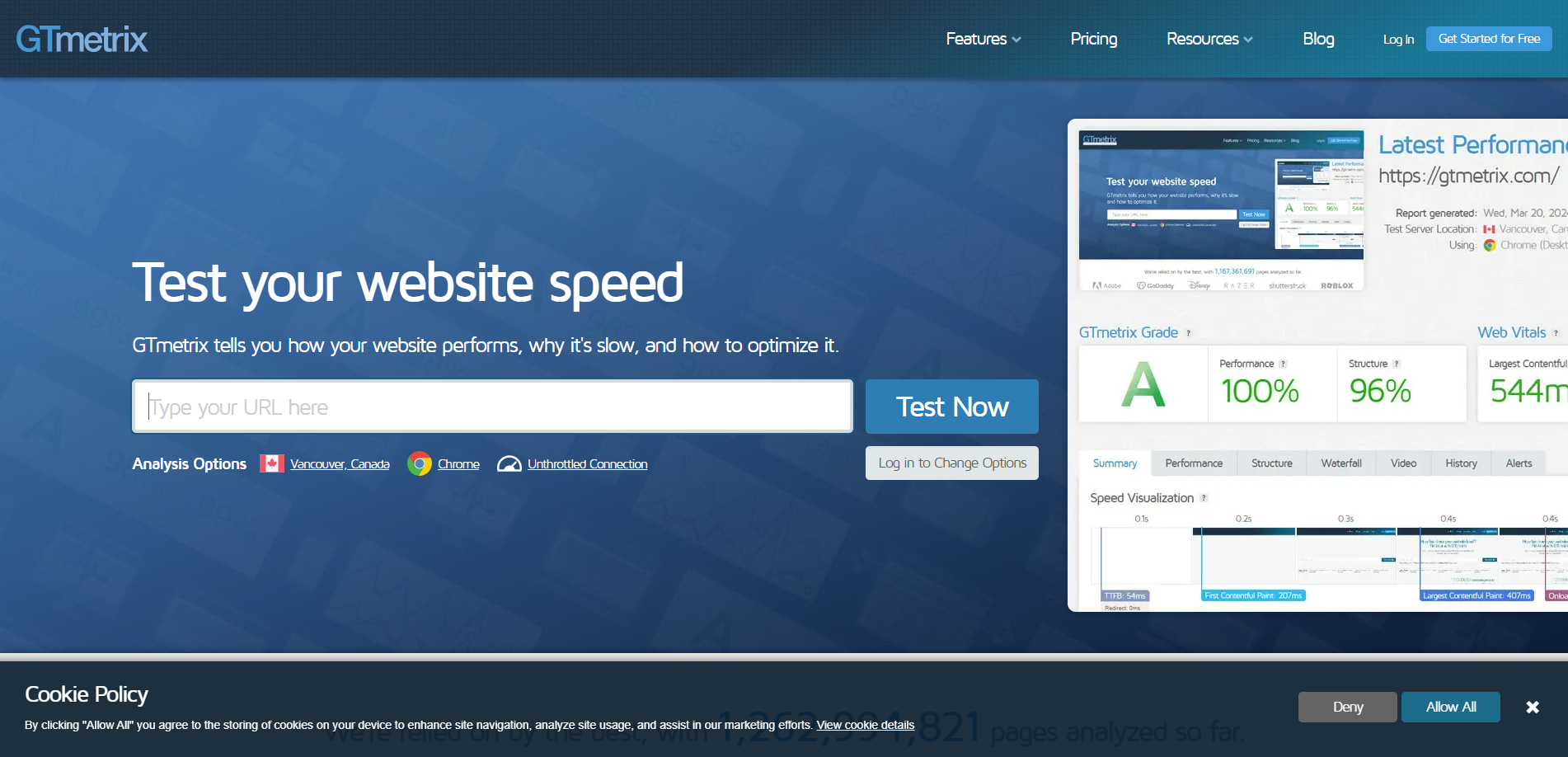
Review your content for spelling, grammar, and formatting. Make sure headings, paragraphs, and images are well-aligned. Test page loading speed using tools like GTmetrix or PageSpeed Insights to identify any performance issues.
For beginners learning how to create a WordPress website for beginners, this step is crucial. Testing ensures that your website is functional, professional, and provides a positive user experience. Once you are confident that everything works perfectly, you can move on to launching your site.
Step 11: Launch Your Website and Plan Ongoing Maintenance
Launching your website is an exciting milestone, but it’s not the end of the process. Sit in front of your desktop, log into your dashboard, and confirm that all pages, menus, and plugins are correctly set up. Once satisfied, you can make your website live by publishing it.
After launch, focus on ongoing maintenance. Keep WordPress, themes, and plugins updated to ensure security and performance. Regularly back up your website so that you can recover it in case of problems. Add new content consistently to engage visitors and improve search visibility.
Monitor your website’s performance and fix any issues that arise, such as broken links or slow-loading pages. Proper maintenance ensures your website remains professional, functional, and secure over time.
Understanding how to create website in WordPress for free or with paid hosting includes both launching and maintaining your site. A well-maintained website attracts visitors, builds credibility, and grows your online presence.
Conclusion
Creating a website with WordPress becomes much more manageable when the process is broken into clear and practical steps. This guide walks beginners through planning, setup, design, content creation, optimization, and launch in a logical order, helping avoid common mistakes along the way. Each step contributes to building a website that is structured, user-friendly, and ready to grow over time.
Understanding how to build a WordPress website is not just about launching pages online, but about maintaining and improving your site consistently. Regular updates, fresh content, and basic maintenance ensure long-term performance and security. Choosing a wp theme bundle can simplify design updates and ensure compatibility as your site grows. With patience and practice, beginners can turn their WordPress website into a reliable online presence that continues to evolve alongside their goals.
FAQs
1. Do I need coding skills?
No, WordPress allows you to build and customize websites without coding.
2. How do I secure my site?
Keep WordPress and plugins updated, use strong passwords, and install a security plugin.
3. How long does it take to build a site?
A basic site can be ready in a few hours to a few days.
4. Can I change my theme later?
Yes, themes and layouts can be changed anytime.
5. Is WordPress SEO-friendly?
Yes, it’s built for search engines, and plugins can improve SEO further.
Blogs Categories
Podcast WordPress Theme (Audio Podcast 2.0)

Latest WordPress Themes

















Buy All our Premium Themes just at $119
