

Creating a website no longer requires advanced technical skills or weeks of development. With WordPress themes that offer demo import functionality, you can build a fully functional, professional-looking website in just a few clicks. Demo import allows you to replicate a ready-made website design, complete with pages, layouts, images, and content so you can focus on customization rather than starting from scratch.
In this guide, “How to Create a Website Using Premium WordPress Themes with Demo Import, you’ll learn how WordPress simplifies the website-building process for beginners and professionals alike. Whether you’re launching a business website, blog, portfolio, or online store, using a theme with demo imports helps you save time, maintain design consistency, and achieve a polished result effortlessly. Let’s explore how you can turn a pre-designed demo into a website that truly reflects your brand.
How to Create a Website Using WordPress Themes with Demo Import?
WordPress has emerged as a powerful and trusted platform that supports millions of websites worldwide. Known for its user-friendly content management system, it enables even beginners to design and manage websites with confidence. From intuitive controls and robust features to visually appealing themes and flexible customisation options, WordPress offers everything needed to build a professional online presence. Without further delay, let’s move forward and explore the step-by-step process of creating a WordPress website using WordPress Themes with Demo Import:
Step 1: Select a WordPress Plan

We begin the WordPress website creation process by choosing the right WordPress plan. As mentioned earlier, the platform offers two main options: WordPress.com and WordPress.org When it comes to ease and convenience, WordPress.com stands out as the recommended choice.
With WordPress.org, you only get access to the free software, while additional essentials such as domain registration, web hosting, themes, plugins, and ongoing maintenance require separate purchases and management. This can make the process more complex, especially for beginners.
On the other hand, WordPress.com provides five well-defined plans designed to suit different website needs. Each plan comes as an all-in-one solution, including hosting, security, updates, and built-in features necessary for website creation. For a smooth, hassle-free experience, choosing WordPress.com is a practical and efficient option.
Step 2: Select a Unique Domain

After selecting your WordPress plan, the next important step is choosing a domain name for your website. A domain name works like your digital address it helps visitors find your website and establishes your brand’s identity online. This address usually appears in the format www.yourwebsite.com, where the website name typically reflects your business or brand name. You can purchase and manage your domain through popular domain registrars such as GoDaddy, Namecheap, Google Domains, Bluehost, or Hostinger, all of which offer easy domain search, registration, and renewal services to help you secure the perfect name for your website.
You may come across various domain extensions such as .in, .co, and others, but .com remains the most widely recognised and trusted option. While selecting a domain, it’s essential to consider a few key factors to ensure it’s effective and memorable:
- Keep the domain name short
- Avoid using numbers, special characters, or hyphens
- Do not include trademarked or copyrighted terms
- Make sure it’s easy to pronounce and spell
- Choose a name that clearly represents your brand and is available
To simplify the process, you can use a free domain search tool when planning your web hosting and domain name setup. One popular option is Domainwheel, which allows you to enter your niche or keywords and instantly suggests relevant and available domain name ideas for your website. This makes it easier to find a domain that aligns with your brand, is easy to remember, and works seamlessly with your chosen web hosting provider, saving time during the initial website setup stage.
Step 3: Select a Reliable Hosting Provider

The next milestone in building your website is selecting a reliable and professional hosting provider. While your domain name serves as your website’s address, hosting acts as its digital home. It is the space where all your website files, content, and data are stored and managed. The quality of your hosting service directly affects your site’s speed, uptime, security, and overall performance, making it a crucial decision for your project.
With numerous hosting providers available, choosing the right one can feel overwhelming. To keep things simple and effective, Bluehost is a highly recommended option. Recognized globally, Bluehost is a trusted web hosting provider known for delivering fast, secure, and dependable hosting solutions tailored for WordPress users.
Why Choose Bluehost?
- Optimized servers for better speed and performance
- e24/7 customer support for technical assistance
- Easy-to-use and beginner-friendly dashboard
- Fully customizable website options
- Secure Shell (SSH) access for enhanced control
- Free domain name for the first year
Now that you understand how Bluehost can support your website, let’s look at the steps to get started:
- Visit the Bluehost website and click on the Get Started button.
- Select a hosting plan from the available options: Basic, Plus, Choice Plus, or Pro. For beginners or small websites, the Basic plan is an affordable choice, starting at $2.95 per month.
- If you require advanced features and higher resources, you can opt for one of the premium plans.
- After choosing a plan, select your domain name. You can either register a new domain or connect an existing one.
- Proceed to the billing section, complete your account details, and finalise the payment.
- Once the setup is complete, you’ll gain access to the Bluehost dashboard, from where you can easily install WordPress and begin building your website.
Step 4: Install WordPress

Once you’ve successfully selected and purchased a suitable hosting plan, the next step is installing WordPress. Many beginners assume that installing WordPress is a complex task, but with the right hosting provider, it’s actually quick and effortless.
A reliable hosting service simplifies the entire process by offering automated or one-click WordPress installation. This is where Bluehost truly stands out. As a trusted hosting provider, it either installs WordPress automatically or allows you to set it up with just a single click.
After completing your hosting registration, Bluehost will send you a confirmation email containing your login credentials and step-by-step instructions to create your website. Using the provided details, log in to your Bluehost account. From the dashboard, navigate to the sidebar, click on My Sites, and then select Add Site.
Next, click the Create Site button, which will prompt you to enter the login credentials shared via email. Once completed, your WordPress website will be successfully set up. You’ll now have a clean, blank site ready to be enhanced with themes, designs, and powerful features.
Step 5: Choose the Best WordPress Themes with Demo Import

Once you’ve completed the basic setup of your website, the next step is to enhance its appearance by choosing the right theme. A WordPress theme defines the overall look and feel of your website; it controls how your content is displayed and how users interact with your site.
A theme goes beyond simple visuals. It includes ready-made templates, layout structures,
typography styles, colour schemes, and other design elements that shape your website’s identity. Although WordPress comes with a default theme that you can customize, switching to a more tailored theme often delivers a better user experience and stronger brand presence.
WordPress offers an extensive collection of themes, available in both free and premium versions. Free WordPress themes are budget-friendly and suitable for basic needs, while premium themes come with advanced features, greater flexibility, regular updates, and dedicated support. No matter your niche whether it’s eCommerce, business, blogging, portfolios, or creative websites, there’s a theme designed to match your goals.
If selecting the right theme feels overwhelming, start by clearly outlining your website’s requirements. Then, use the following checklist to make an informed choice:
- Clean, modern, and minimal design
- Easy-to-use and beginner-friendly interface
- Flexible customisation options
- Built-in SEO-friendly structure
- Fully responsive design for all devices
- Regular updates and detailed documentation
- Compatibility with essential WordPress plugins
- Translation-ready for global audiences
- Strong user reviews and ratings
- Reliable and responsive customer support
- Demo import integration is a must
With these factors in mind, you’re now prepared to choose and install a theme that perfectly aligns with your website’s purpose and vision.
While many platforms offer themes, VW Themes has carved out a reputation for providing one of the most seamless "One-Click Demo Import" experiences in the industry. If the standard WordPress setup is the foundation, a VW Theme is the fully furnished interior. While many theme providers leave you with a complex manual and a mountain of settings to tweak, VW Themes excels at the "One-Click" philosophy. They understand that you don't want to build a website; you want to have a website. VW Themes isn't just another library; it is a curated collection of over 240+ professionally crafted designs tailored to specific industries. Whether you’re launching a street food blog, a corporate consultancy, or a high-end e-commerce store, their themes come with "pre-built" DNA.
So, here we have the right platform for theme selection, and you can choose a theme that belongs to your business or niche. Now, we are heading on to how to install and activate a WordPress Theme with Demo Import on your website:
Step 6: Install and Activate WordPress Theme with Demo Import
Follow the steps below to get your website looking exactly like the theme demo in just a few minutes:
Step 1: Log in to Your WordPress Dashboard

- Go to yourwebsite.com/wp-admin
- Enter your username and password
- You’ll be redirected to the WordPress admin dashboard
Step 2: Install the VW Theme

- From the dashboard, navigate to Appearance → Themes
- Click Add New
- Click Upload Theme if you’ve purchased a premium VW Theme and upload the .zip file
- Click Install Now, then Activate
Step 3: Install Required Plugins

- After activation, you’ll see a prompt to install recommended plugins
- Click Begin Installing Plugins
- Install and activate all required plugins
Step 4: Import Demo Content

- Go to Appearance → Theme Setup or VW Theme Options
- Click on Demo Import / Import Demo Data
- Select the demo you want
- Click Import and wait for the process to complete
Step 5: Finalise Website Setup
- Once the demo import finishes, visit Pages → All Pages to confirm demo pages are added
- Set the homepage via Settings → Reading
- Customise content, images, colours, and fonts from Appearance → Customise
Step 6: Customise & Launch

- Replace demo text and images with your own content
- Adjust menus, widgets, and layouts
- Preview your site and publish when ready
Step 7: Add Posts and Pages
In WordPress, all website content is managed through posts and pages. Posts are typically used for blogs, news updates, and portfolio entries, and they are displayed in reverse chronological order, with the newest content appearing first. Pages, on the other hand, are static in nature. Their content remains unchanged for long periods and is commonly used for sections like Home, About Us, Contact, or Privacy Policy.
Both posts and pages play an important role in enhancing your website’s structure and value. WordPress allows you to create an unlimited number of them with just a few simple steps.
How to Add a Post in WordPress?
- Log in to your WordPress dashboard.
- Navigate to Posts and click Add New.
- You’ll be taken to the editor, where you can enter your content.
- Enhance your post using blocks, assign categories and tags, and apply formatting as needed.
- Once finished, click Save Changes to publish or store your post.
How to Add a Page in WordPress?
Pages are designed for permanent content and are often used to highlight key information or organise your website.
- From the WordPress admin panel, go to Pages.
- Click on Add New to open the editor.
- Add a title, insert content blocks, images, and other elements.
- After completing the page design, click Save Changes to finalise it.
By effectively using posts and pages, you can create a well-structured, informative, and engaging WordPress website.
Step 8: Add Essential Plugins

Plugins are small add-on tools that extend the capabilities of a WordPress website. They allow you to add new features and enhance performance without writing a single line of code. With access to over 50,000 plugins in the WordPress plugin repository, you can easily find solutions for almost every website requirement, while also learning how to prevent WordPress plugins from causing conflicts, security risks, or performance issues by choosing only reliable, well-maintained options and avoiding unnecessary installations.
You can install plugins based on your site’s goals and functionality needs. Some essential plugins commonly used to improve website performance and management include:
- An all-in-one SEO plugin to improve search engine visibility
- Yoast SEO for optimising content and boosting rankings
- MonsterInsights to track and analyse Google Analytics data
- WPForms for creating contact forms and lead-generation forms
- PushEngage to increase traffic through push notifications
- UpdraftPlus for secure website backups
- Sucuri Security to strengthen website protection
How to Install Plugins in WordPress?
- Log in to your WordPress admin dashboard and go to the Plugins section.
- Click the Add New button at the top of the page.
- Search for the plugin you want, then click Install Now, followed by Activate.
- Repeat the same steps to add any additional plugins you need.
By choosing the right plugins and keeping them updated, you can significantly improve your website’s functionality, security, and overall performance.
Step 9: Test and Launch Your Website
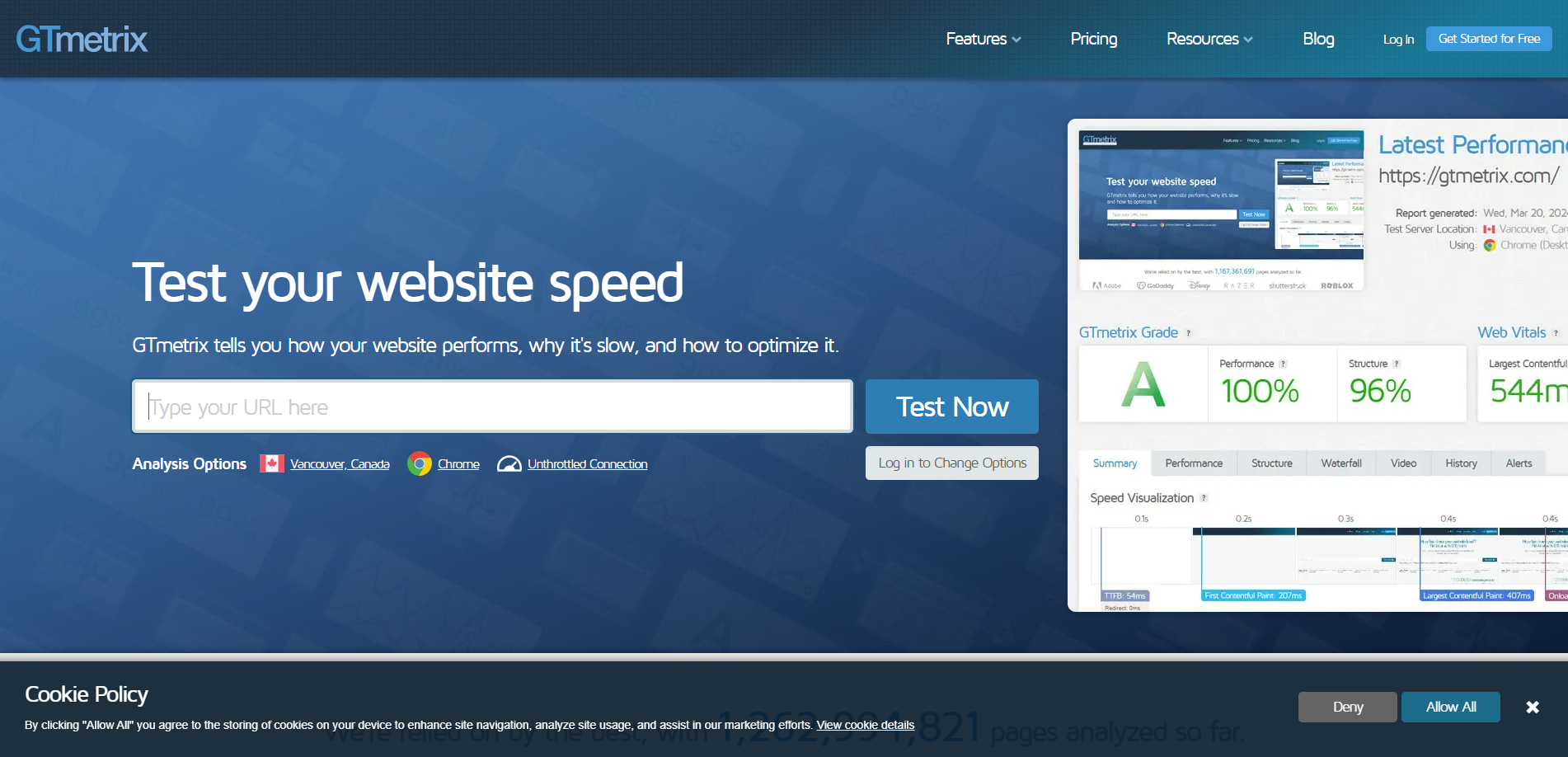
Before making your website live, it’s essential to test everything thoroughly to ensure a smooth experience for visitors. Proper testing helps identify issues early and ensures your site performs well across all platforms. Start by reviewing your website’s design and layout. Check that all pages load correctly, images display properly, and text is readable. Test your website on different devices and browsers to confirm it is fully responsive and visually consistent.
Next, verify all functionalities. Ensure contact forms work, links redirect correctly, menus are easy to navigate, and plugins perform as expected. It’s also important to check website speed, security settings, and SEO basics such as meta titles and descriptions.
Once testing is complete and you’re confident everything is working smoothly, it’s time to launch. Make your website public, submit it to search engines, and start promoting it across your marketing channels. With proper testing and a careful launch, your WordPress website will be ready to deliver a professional and reliable experience to your audience.
Conclusion
Creating a website no longer has to be a complex or time-consuming task. With WordPress themes with demo import functionality, you can build a professional, feature-rich website with minimal effort. From choosing the right WordPress plan and domain name to selecting reliable hosting, installing WordPress, and importing a ready-made demo, each step is designed to simplify the website-building journey.
Demo import allows you to start with a fully structured layout and focus on what truly matters: customizing content, enhancing functionality with plugins, and aligning the design with your brand identity. Whether you’re a beginner launching your first site or a professional looking to save time, WordPress makes the process efficient and accessible.
By using trusted hosting providers and high-quality themes like those included in a wp theme bundle offering seamless demo imports, you can confidently test, launch, and grow your website without technical barriers. In short, WordPress truly makes website creation easy, enabling anyone to turn their ideas into a polished online presence quickly and effectively while benefiting from flexible design options, scalable features, and long-term growth potential.
Frequently Asked Questions (FAQs)
1. What is demo import in WordPress themes?
Demo import is a feature that allows you to import a pre-designed website layout along with sample content, images, and settings. It helps you recreate the theme’s demo website quickly without building everything from scratch.
2. Is the demo import suitable for beginners?
Yes, demo import is ideal for beginners. It eliminates complex setup steps and lets users launch a professional-looking website with minimal technical knowledge.
3. Do I need coding skills to use the WordPress demo import?
No coding skills are required. Most WordPress themes with demo import offer one-click installation, making the process simple and user-friendly.
4. Will the demo import overwrite my existing content?
Demo import works best on a fresh WordPress installation. Importing demo content on an existing website may override or duplicate content, so it’s recommended to back up your site before proceeding.
5. Are demo import themes free or paid?
Both free and premium themes can offer demo import functionality. Free themes usually include basic demos, while premium themes provide advanced layouts, features, and dedicated support.
6. How long does it take to import demo content?
The demo import process typically takes a few minutes, depending on your hosting performance and the size of the demo content.
Blogs Categories
Podcast WordPress Theme (Audio Podcast 2.0)

Latest WordPress Themes















Buy All our Premium Themes just at $119
